Where the run data lives
Runs can be viewed in several places in the Power Automate portal. Each flow keeps its own run history — by default the last 28 days, with status, start time, and duration for every run.
What FlowOversee adds: the whole day on one strip
FlowOversee's Timeline adds a different way of seeing the same runs: as a picture of the day. Every flow is a lane; every run is a bar placed where it happened on a 24-hour grid, colored by outcome — succeeded, failed, cancelled — so placement, overlap, and gaps read at a glance. Cloud and desktop flows share the same grid, times show in the time zone you choose with a 12- or 24-hour clock, and you can search the lanes to jump straight to a flow.
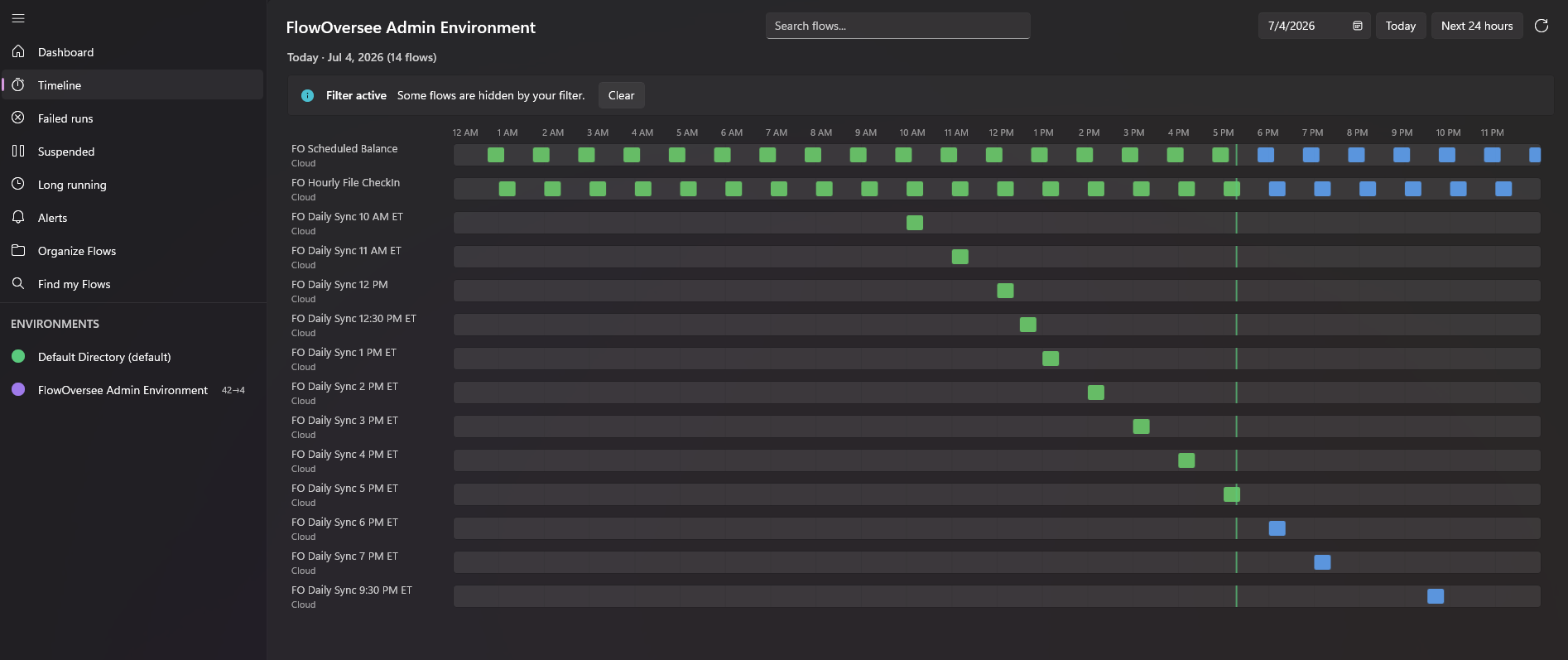
The Today view: the day so far behind the now-line, outcomes on every bar, and the rest of the day's schedule ahead.
The same timeline answers four different questions, depending on the view you pick:
- Today — how is the day going? The calendar day, midnight to 11:59 PM, with the now-line where you are in it: what already ran sits behind the line with its outcome, and the rest of the day's schedule stretches out ahead — updating live as runs start and finish.
- Next 24 hours — what is running and what is next? A rolling window from the current moment forward, across midnight when the day is nearly over: runs in progress and everything scheduled over the coming day.
- Any day in run history — what happened? Replay steps back to the day you pick — as far back as run history reaches, 28 days by default — and draws exactly what ran, when, and how it ended: the fastest way to pin down when something started going wrong, or what else was running at 2 AM.
- Any future date — what is coming later? Pick the holiday Monday or the Saturday maintenance window and see what is scheduled to fire that day, before it happens.
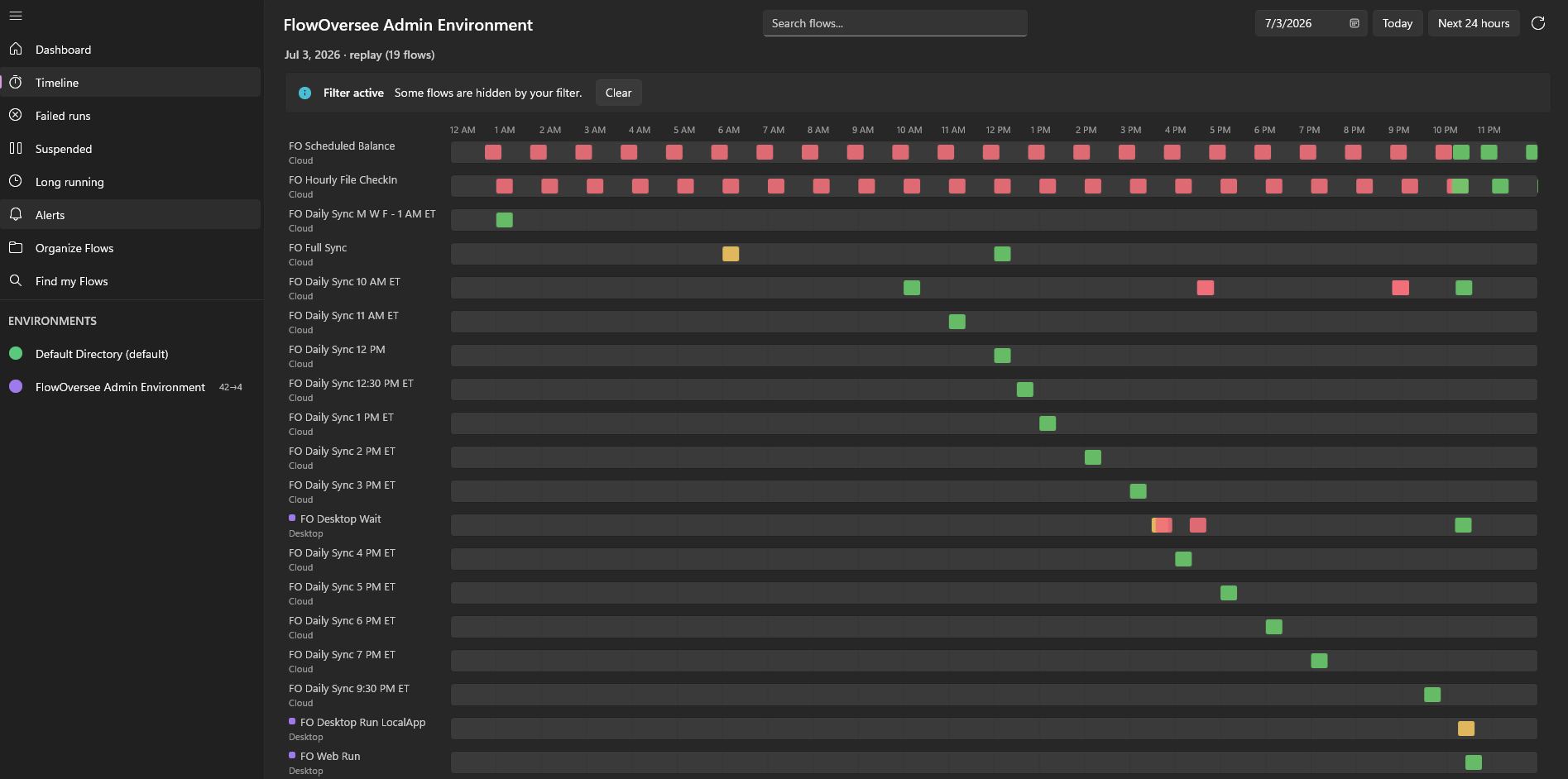
Replay: pick a day within run history and its runs draw exactly as they happened, outcome by outcome.
Read more on the Timeline feature page, or try every view in the interactive demo — no install, no sign-in, simulated data.