The first check: the signed-in account is the lens
FlowOversee uses delegated, read-only permissions — it reads Microsoft Power Automate data as the account you signed in with, and can never see more than that account sees. So the first check is always the same: open the Power Automate portal signed in as the same account FlowOversee uses. If the environment is missing from the environment picker there, it is not visible to that account anywhere — FlowOversee included — and the fix is granting access, not changing anything in the app.
The reverse can also happen: an environment with no Dataverse database can be opened in the maker portal yet still not appear in FlowOversee, because the environment list FlowOversee reads includes only Dataverse-backed environments. That case is the database step below, and adding the database is what resolves it.
How an account gets access to an environment
- Check what the account has today. In the Power Platform admin center, select the environment and review its users and security roles. Environment access is per-environment: a role in one environment grants nothing in another, so an account can see five environments and still be blind to a sixth.
- Mind the Dataverse prerequisite — and add the database if it is missing. An environment with no Dataverse database is still managed per user, but only through two flat entries: the Access panel offers Environment admin and Environment maker, and nothing finer. The granular security roles that come with Dataverse do not exist yet, and there is no Settings option for managing users. Makers designated in the Access panel can build and run flows in the maker portal — but such an environment does not appear in FlowOversee at all. The tell doubles as the fix: the environment's details page in the admin center shows a prominent Add Dataverse panel, and an administrator can add the database from it. Provisioning usually completes within minutes; it unlocks the Settings option with its Users + permissions and security-role pages — and it is what makes the environment appear in the FlowOversee environment list.
- Assign the right pair of roles. The pairing that works in practice is Environment Maker plus Basic User, because they do different jobs: Basic User is a Dataverse data role — it grants record access but does not, on its own, surface the environment in the environment picker — while Environment Maker is what makes the environment appear in the list. Assign both, then use Refresh user on the user's panel to push the change through.
- Allow for propagation, then refresh. A new database or a fresh role assignment can take fifteen to thirty minutes to be reflected everywhere. FlowOversee pulls the environment list fresh on each load, so once the access is live, a refresh — or simply restarting the app — is all it takes.
One related thing worth knowing before the next step of the ladder: adding a Dataverse database does not move the environment's existing flows into it, and gaining access to an environment does not by itself make every flow in it visible. Which flows an account can see is its own question — covered in the companion guide, why a flow does not appear.
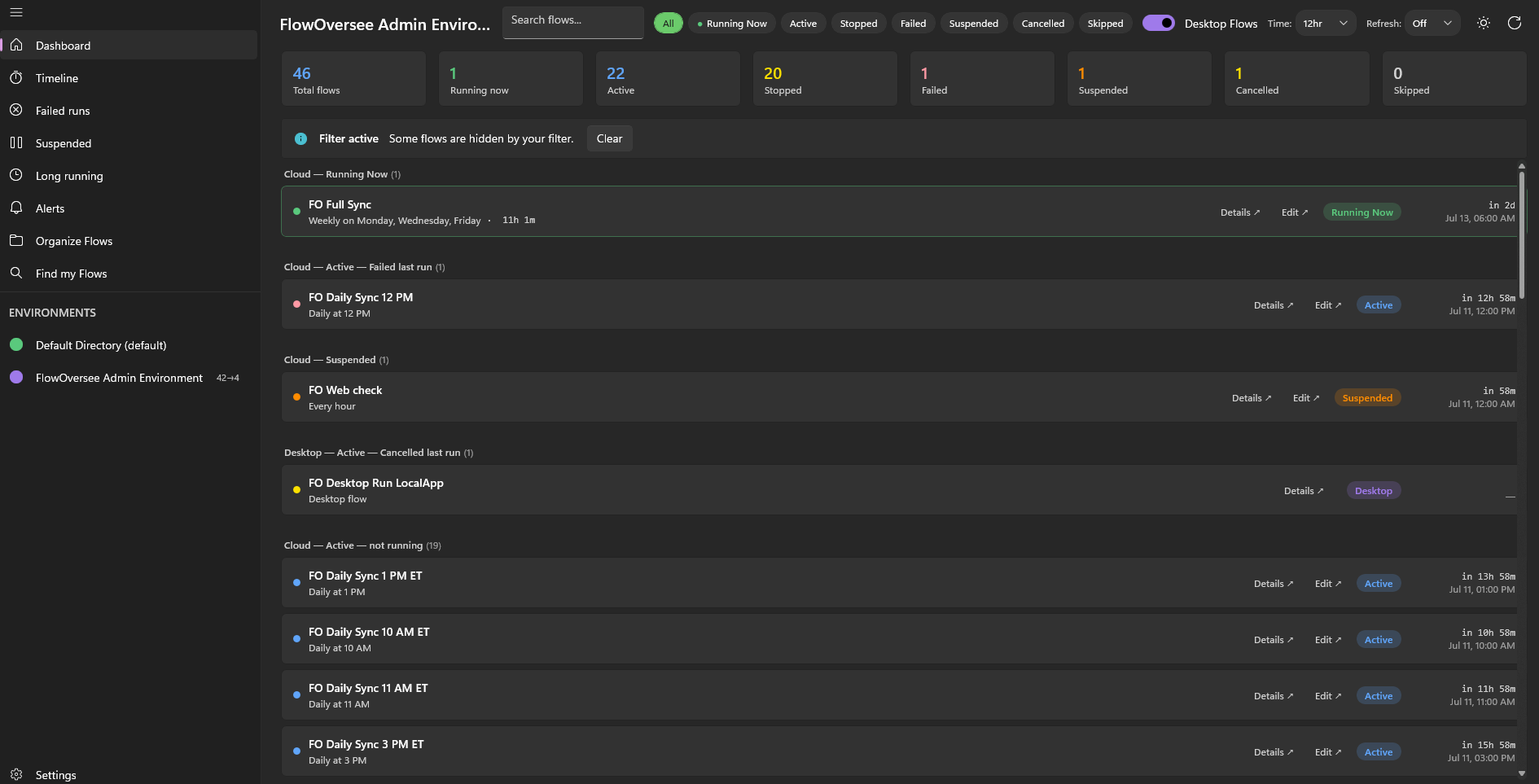
The Dashboard works per environment — the switcher lists the Dataverse-backed environments the signed-in account can reach, refreshed on every load.
What FlowOversee adds once access is in place
FlowOversee never caches environment or flow data, so there is no stale list to fight — the moment the account can see the environment, the next refresh shows it. From there, Find my Flows searches every flow the account can reach across all of its environments in one list, which makes it the fastest way to confirm what the account can and cannot see. And every monitoring feature — the Dashboard, the Timeline, the Daily Monitor — works per environment from that same access.
A note on scope: this guide is one point of view — behavior observed on a single, uncustomized environment and tenant — and it is not the authoritative reference. There are many variables: admin-center pages, defaults, and rollout behavior change as Microsoft updates the platform, and custom security roles, licensing, policies, or tenant configuration can change what you see. Always defer to the official Microsoft documentation, your administrator, and your organization's own policies and guardrails for the authoritative answer in your environment.